


 Hotline: 0855.911.911
  RSS
RSS 





In daily life, the use of measurement units such as cm, inch, kg, pound, ml, and oz is unavoidable. With globalization, smart devices, including iPhones, offer flexible conversion between these units to serve the diverse needs of users. If you're looking for a way to change measurement units on your iPhone, this article will guide you through the extremely simple steps.
Why should you change the units of measurement on your iPhone?
Before we delve into the details of how to do it, let's understand why converting units of measurement on your iPhone is important:
Firstly, for those working in an international environment, changing units of measurement facilitates easier information exchange.
Secondly, students may need to convert units of measurement for assignments and projects.
Thirdly, when traveling, you'll need to know how to convert between different units of measurement to avoid problems when shopping or using services.
Fourth, when exercising, knowing how to convert between kilograms and pounds or kilometers and miles will help you easily track your progress.
How to change units of measurement on iPhone
(Illustrative image)
1. Change the unit of measurement in "Settings"
Some of the default iPhone unit settings can be changed in the "Settings" app.
Step 1: Open "Settings"
On your iPhone's home screen, find and open the "Settings" app, which has a gear icon.
Step 2: Select "General Settings"
Scroll down and select "General Settings".
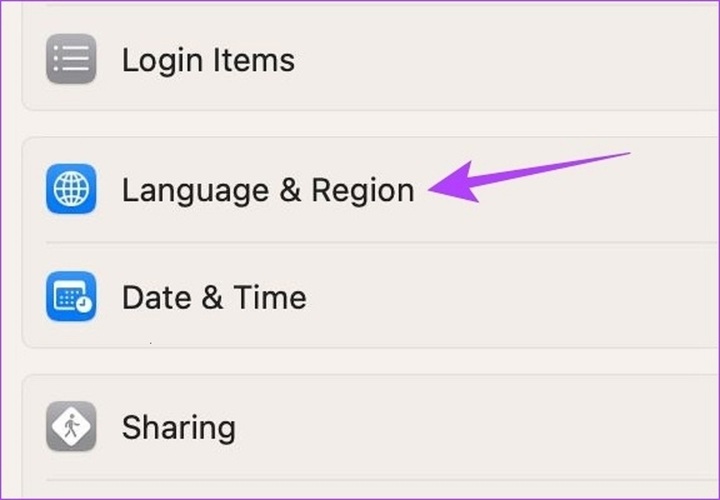
Step 3: Select "Language & Region"
Next, scroll down further and select "Languages & Regions".
Step 4: Adjust the area
In "Language & Region," you'll find the "Region" option. Select the region corresponding to your desired unit of measurement. For example, if you want to use British-American units (inches, pounds), select "United States." Note that changing the region will affect many other settings on your phone, such as date, time, and currency formats.
2. Using third-party applications
If you don't want to change the region or need to convert between different units of measurement, you can use unit converter apps from the App Store.
Recommended applications:
Units: This application supports converting most types of measurement units such as length, area, mass, volume, temperature, and speed.
My Measures: In addition to converting measurement units, this application also supports storing your measurement parameters, which is very convenient for design and construction-related projects and work.
3. Converting units of measurement in health applications
If you regularly use the Health app on your iPhone to track your metrics, you can also change the units of measurement directly within the app.
Step 1: Open the Health app
On the home screen, find and open the Health app.
Step 2: Select the "Health Data" tab.
Select the "Health Data" icon at the bottom of the screen.
Step 3: Select the data type
Select the type of data you want to change the unit of measurement for, such as Weight or Height.
Step 4: Convert the unit of measurement.
Within each data type, you will find the Units section. Select and change the units as desired.

 Comment