



 Hotline: 0855.911.911
  RSS
RSS 





This makes it easier for users to present, share content, or even manage tasks more conveniently. In this article, we will guide you step-by-step on how to mirror your iPhone screen to your MacBook, ensuring you have the smoothest and most efficient experience.
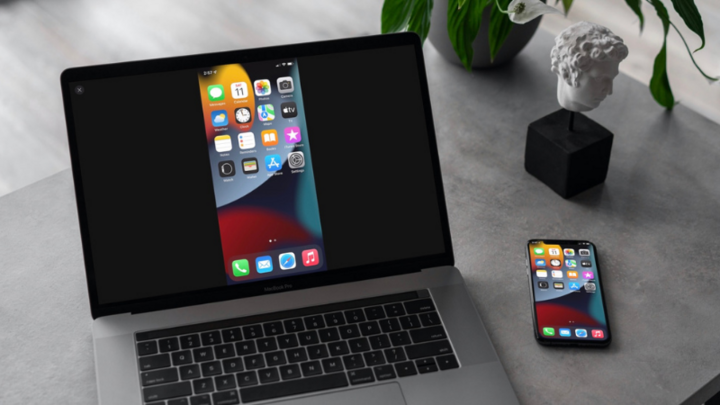
(Illustrative image)
Why mirror your iPhone screen onto your MacBook?
Before we get started, let's look at some of the benefits of mirroring your iPhone screen to your MacBook:
1. Presentations and slideshows: Easily project documents, images, or videos from your phone onto the larger screen of your MacBook.
2. Gaming: Experience mobile games on a larger screen with better image quality.
3. Task Management: View and interact with work-related apps on your iPhone via your MacBook screen.
4. Content Sharing: Quickly share videos and images with others without transferring data.
How to mirror your iPhone screen to your MacBook
There are several ways to mirror your iPhone screen to your MacBook, from using a cable to wireless software or tools. Below are two of the most common and easiest methods.
Method using USB cable and QuickTime Player
Step 1: Connect your iPhone to your MacBook
Use a Lightning cable to connect your iPhone to your MacBook. Make sure both devices are turned on and functioning properly.
Step 2: Open QuickTime Player
On your MacBook, open the QuickTime Player application. This is a built-in application on macOS, so you don't need to download anything extra.
Step 3: Select 'File' and 'New Movie Recording'
In the QuickTime Player application, select 'File' from the menu bar at the top and then select 'New Movie Recording'.
Step 4: Select iPhone as the source.
A new window will open with a screen mirroring button in the middle. Click the small arrow next to this button and select your iPhone from the list of available devices. Immediately, your iPhone screen will be mirrored to the QuickTime Player window on your MacBook.
Step 5: Enjoy and make the most of it.
You can start taking advantage of this screen mirroring feature to perform the tasks you want. If you need to record your screen, simply press the record button and QuickTime will save the video.
How to use AirPlay
Step 1: Ensure both devices are on the same Wi-Fi network.
To use AirPlay, make sure both your iPhone and MacBook are connected to the same Wi-Fi network.
Step 2: Turn on AirPlay on your iPhone
On iPhone, swipe up from the bottom edge of the screen to open Control Center. Tap the AirPlay or Screen Mirroring icon.
Step 3: Select MacBook as the mirroring device.
In the list of available devices that appears, select your MacBook. Your iPhone screen will immediately be mirrored onto your MacBook.
Using third-party software
You can also use third-party software to mirror your iPhone screen to your Macbook, such as Reflector. The process is quite simple, following these steps:
Step 1: Download Reflector 4 software for Macbook and install it as usual.
Step 2: Connect your iPhone and Macbook to the same Wi-Fi network. Open screen mirroring, then select the Macbook named Reflector from the Control Center.
Step 3: Take the connection code from your phone and enter it into your computer to successfully establish the connection.
Some important notes
1. Software Update: Ensure both your iPhone and MacBook are updated to the latest software version to avoid compatibility issues.
2. Connection
For the AirPlay method, your Wi-Fi network needs to be strong and stable enough to ensure mirroring quality.

 Comment